AAC for children and young people

An AAC device built to be dropped.

Rugged Speech is AAC (augmentative and alternative communication) that children can take everywhere: big picture buttons on a tough tablet that can go to school, to the park and to bed. It's free, and it works without wifi.

Intel Mac? Get the Intel version. Not sure which you have? Apple menu, then About This Mac. Free, about 130 MB.

Mac says it cannot verify the app? That is expected for now. Open System Settings, then Privacy & Security, scroll down and press Open Anyway. You only do this once.

  • Free
  • No wifi needed
  • No account
  • Windows and Mac
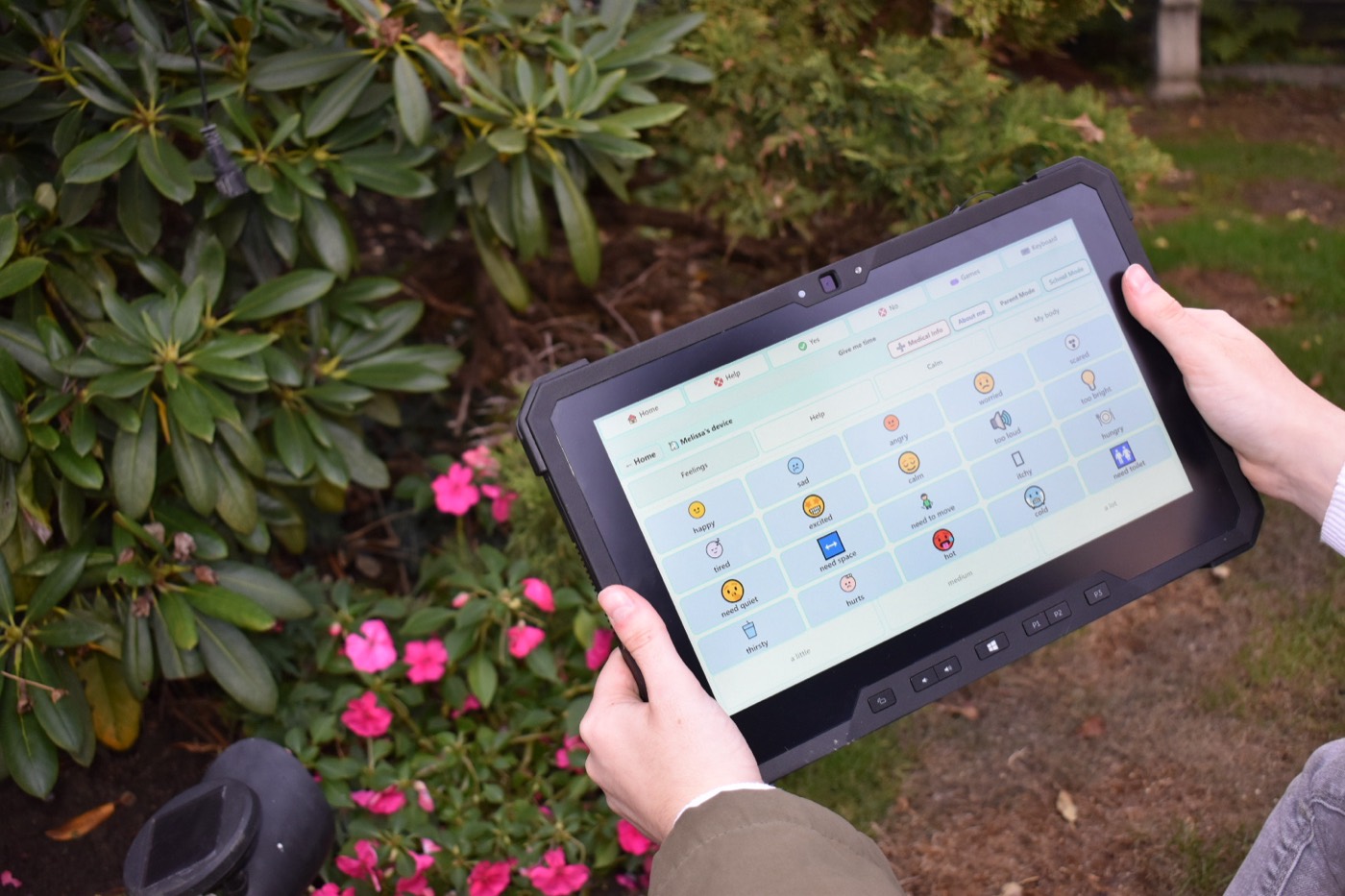
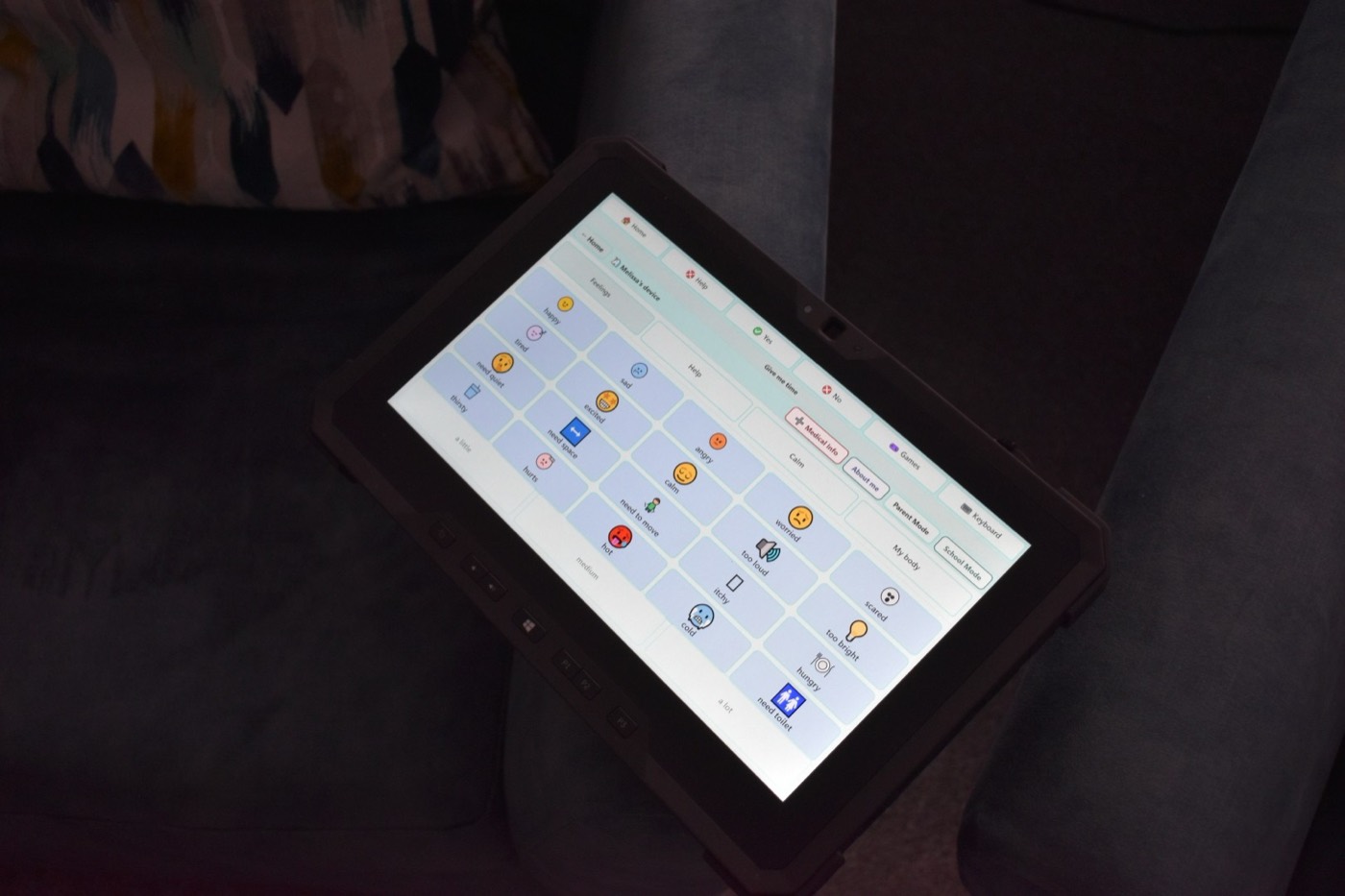
A child's hands holding a rugged tablet in the garden, showing the Feelings page: happy, sad, angry, worried, need quiet, need space and more

Made for everyday life

Go on. Take it to the park, drop it in the grass.

Rugged Speech is a communication aid made for real childhoods: muddy knees, car journeys, wobbly tables and the odd drop. It's designed to be used all day, every day, wherever your child is, so it never needs to be kept on a shelf for best.

It runs on rugged Windows tablets, the chunky kind with rubber corners that are made to take a knock. That means your child's communication can come along to breakfast, to school, to Grandma's and to bed, with nobody worrying about breakages. It works on any Windows 10 or 11 device, and on Macs too, and every new feature arrives on both at the same time.

It's for children and young people who are non-speaking or minimally speaking, and for those whose speech comes and goes or takes a lot of effort. That includes autistic children, children with speech, language and communication needs (SLCN), and children and young people who stammer. Speech is always welcome alongside it: AAC supports talking, it doesn't replace it.

  • Drop itRuns on rugged tablets made for knocks, spills and sandpits.
  • Take it anywhereNo wifi needed. It talks in the car, the field and the waiting room.
  • Pass it roundFamily, school staff and speech and language therapists all support the same device, each with their own area.
  • Back up in a minuteSave one file to a USB stick. If a tablet ever goes missing, everything goes straight onto another.

Where to start

A day with Rugged Speech

One device, from breakfast to bedtime.

The buttons are in the same place at home, at school and in the garden, so a child only has to learn them once.

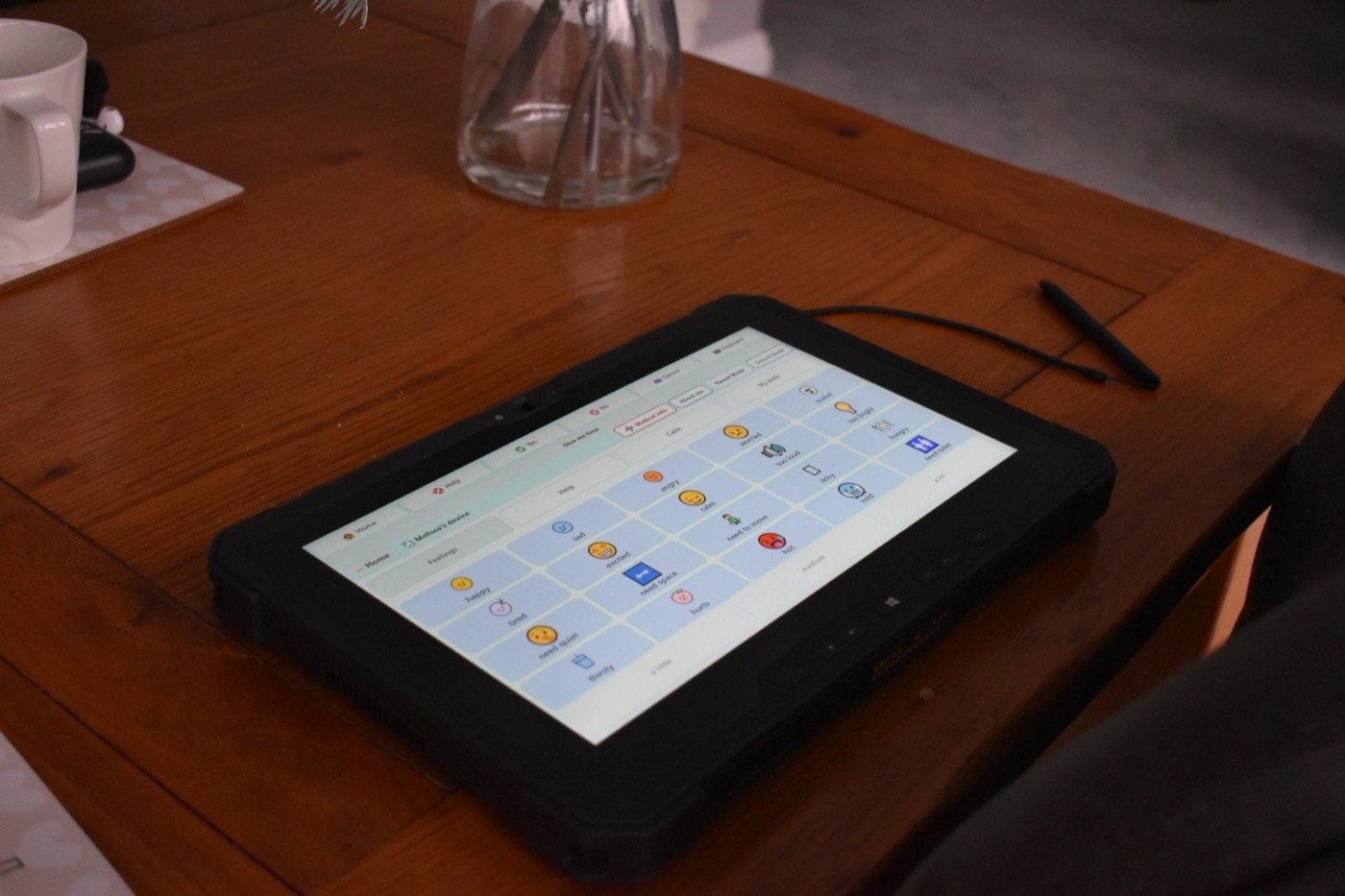
The Feelings page on a tablet on the kitchen table, with a mug and a stylus nearby

7:45am · Breakfast

Saying how the morning feels.

Before the school run, Feelings lets a child say they're tired or worried, and how much: a little, medium or a lot. My Day shows what's coming next, and Now and Next help the move to school feel more predictable.

I'm worried. A lot.
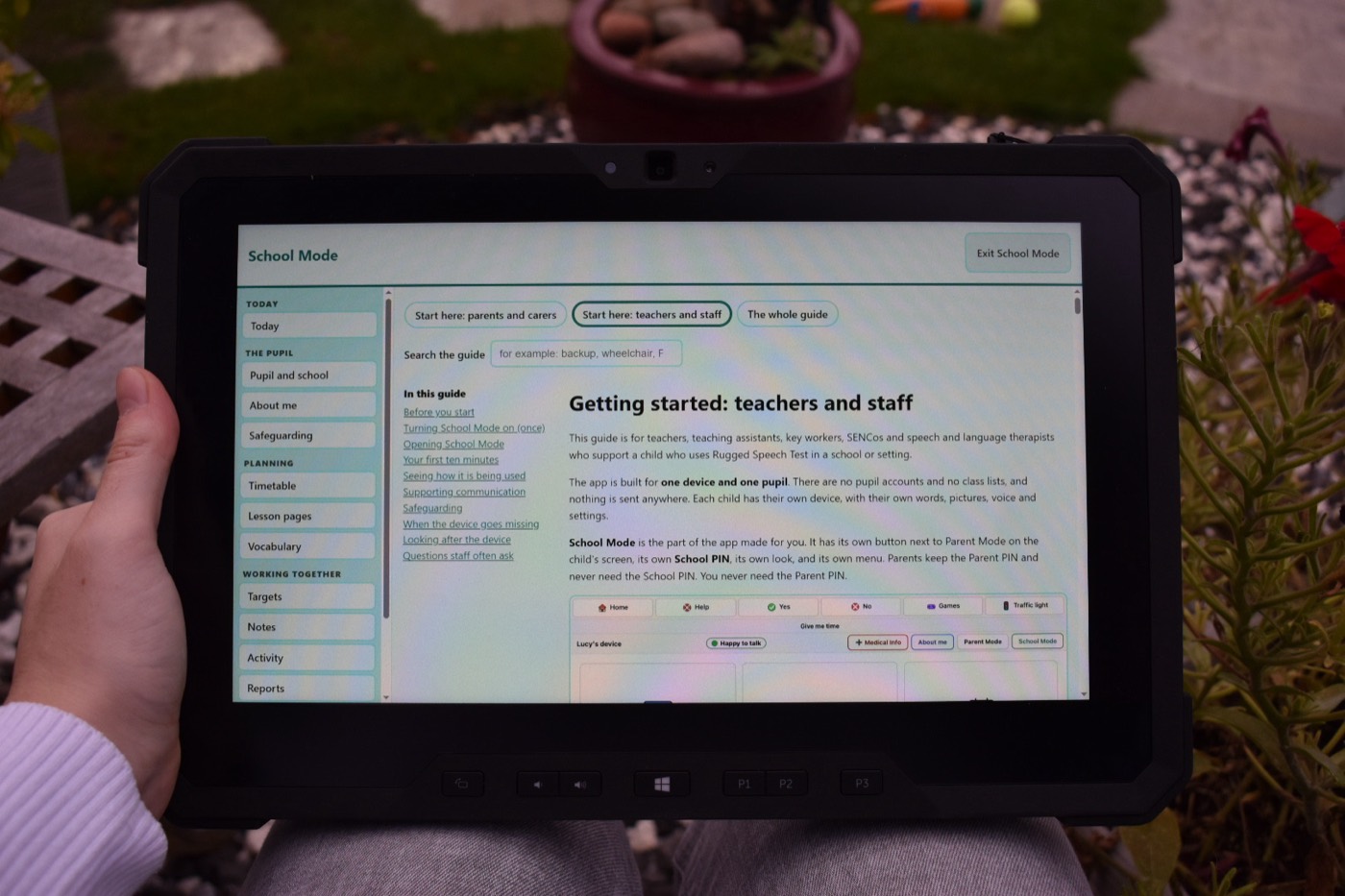
School Mode on the tablet, showing the guide for teachers and the staff menu

10:30am · In class

School picks up where home left off.

The teaching assistant opens School Mode with the school's own PIN to bring up the maths lesson page. Nothing on the child's screen moves. At the end of the day, a quick note goes in for home.

I need a break.
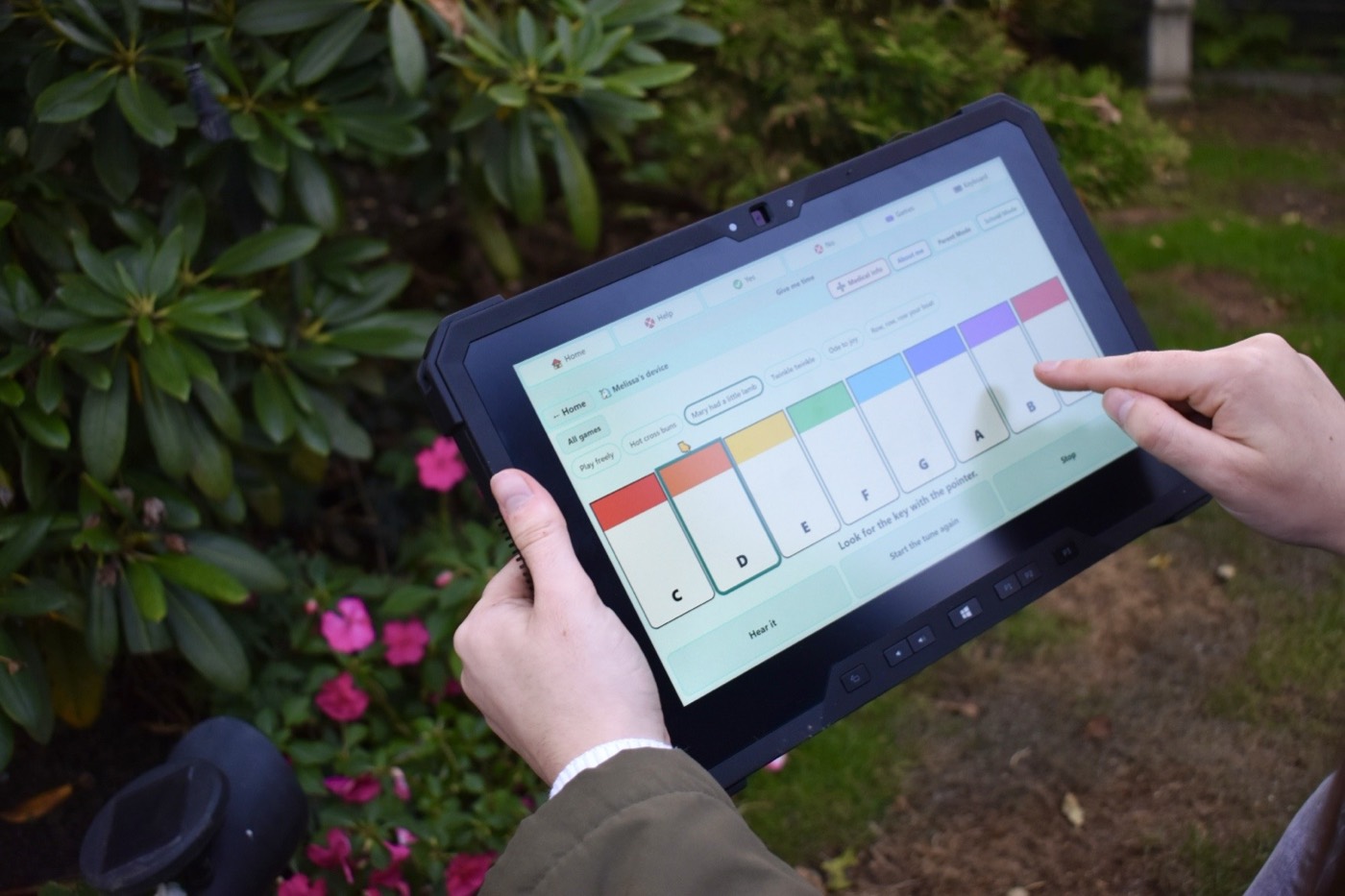
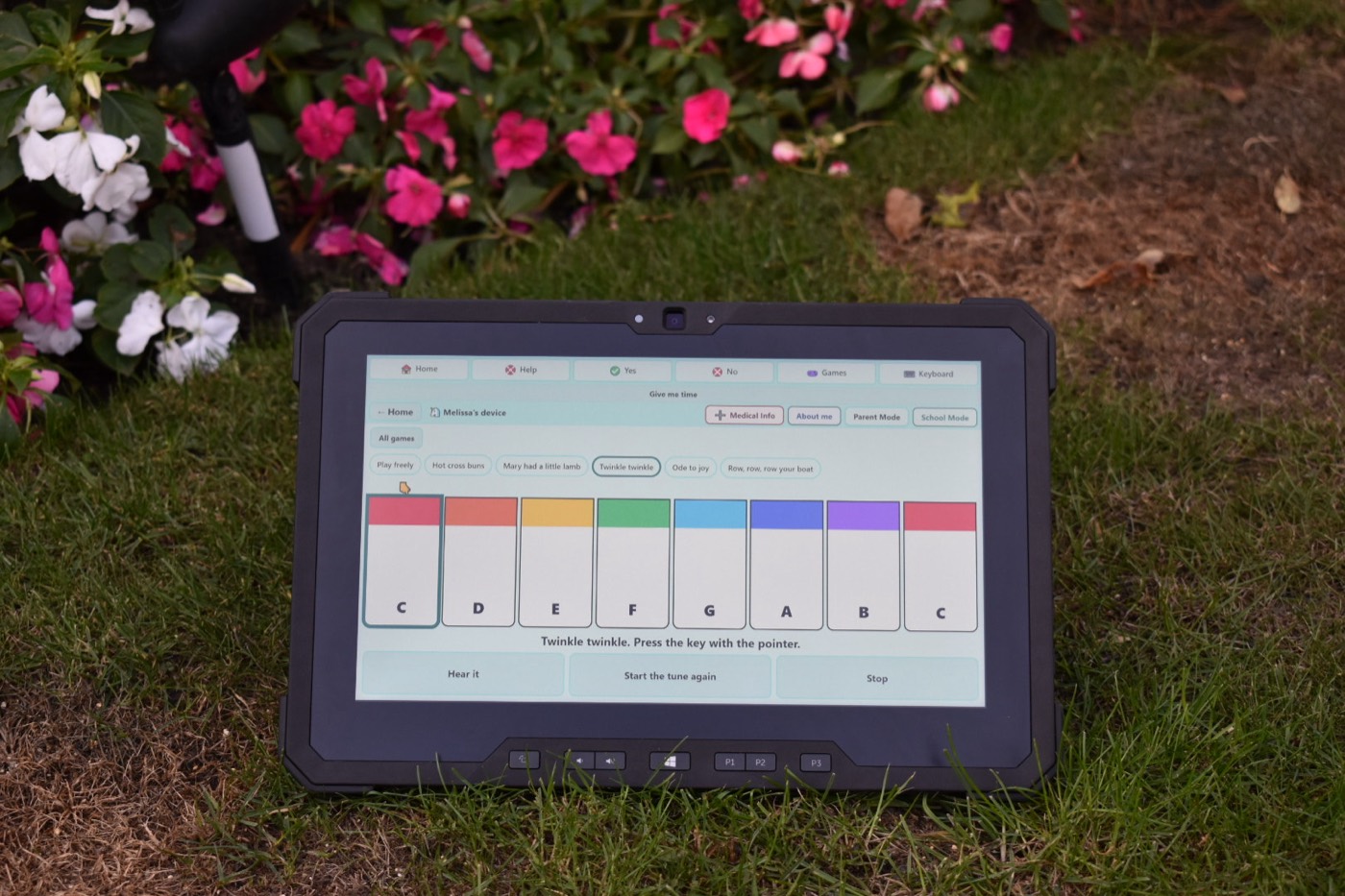
Playing the Piano game on the tablet in the garden, pressing a coloured key

4pm · In the garden

Playing, and telling you when it hurts.

Piano, Draw and Snap have no clocks and no scores, just play. If there's a tumble, My body lets your child point to where it hurts on a figure that looks like them, then say it.

My knee hurts a lot.
The Feelings page on a tablet resting on the arm of a sofa in a dim room

7:30pm · Winding down

Room to say the big things.

Calm has a breathing guide and a quiet-time timer. The traffic light lets a child show how much they want to be talked to, without a word. And Give me time says "I know what I want to say. Please give me a moment."

I feel scared.

Inside the app

Everything your child reaches for, one or two presses away.

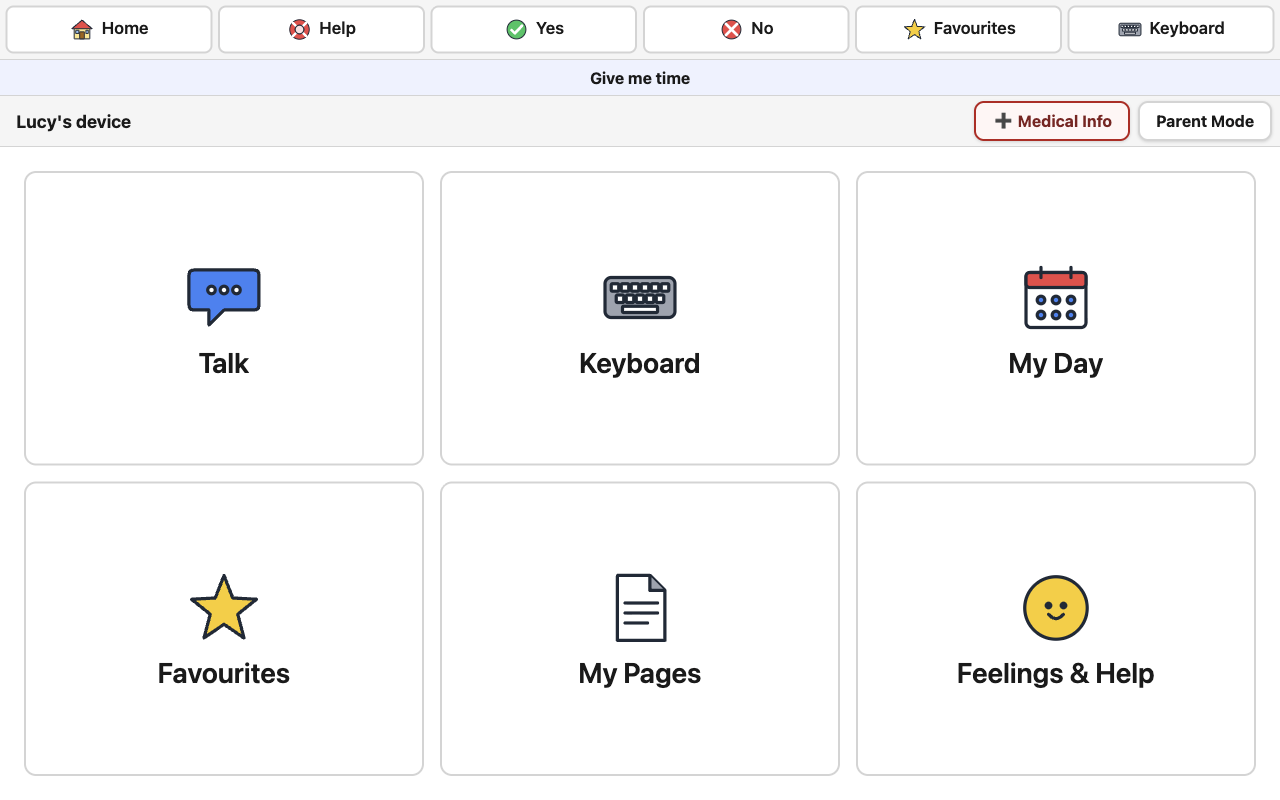
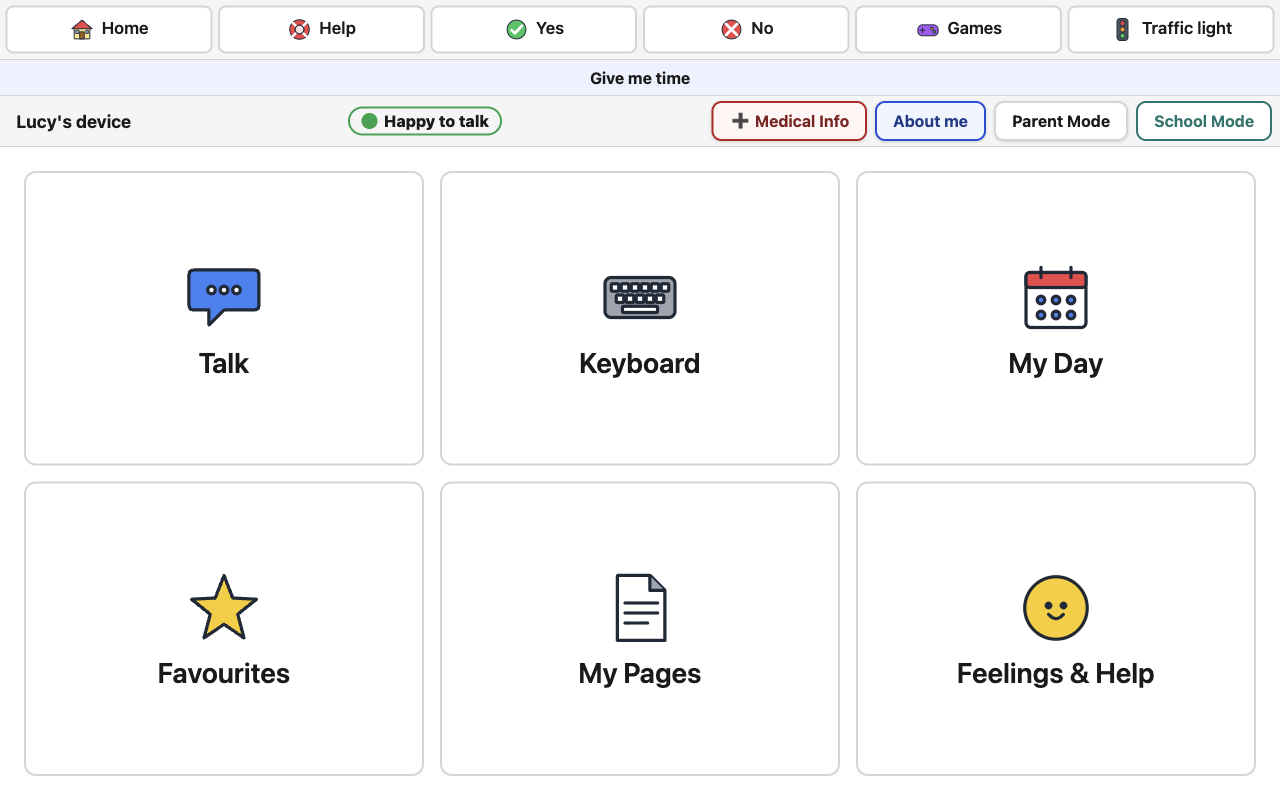
Six buttons along the top are always there, and Help is always one of them. Everything else is big, colourful and in the same place every day.

Have a go

Press a word. Hear it.

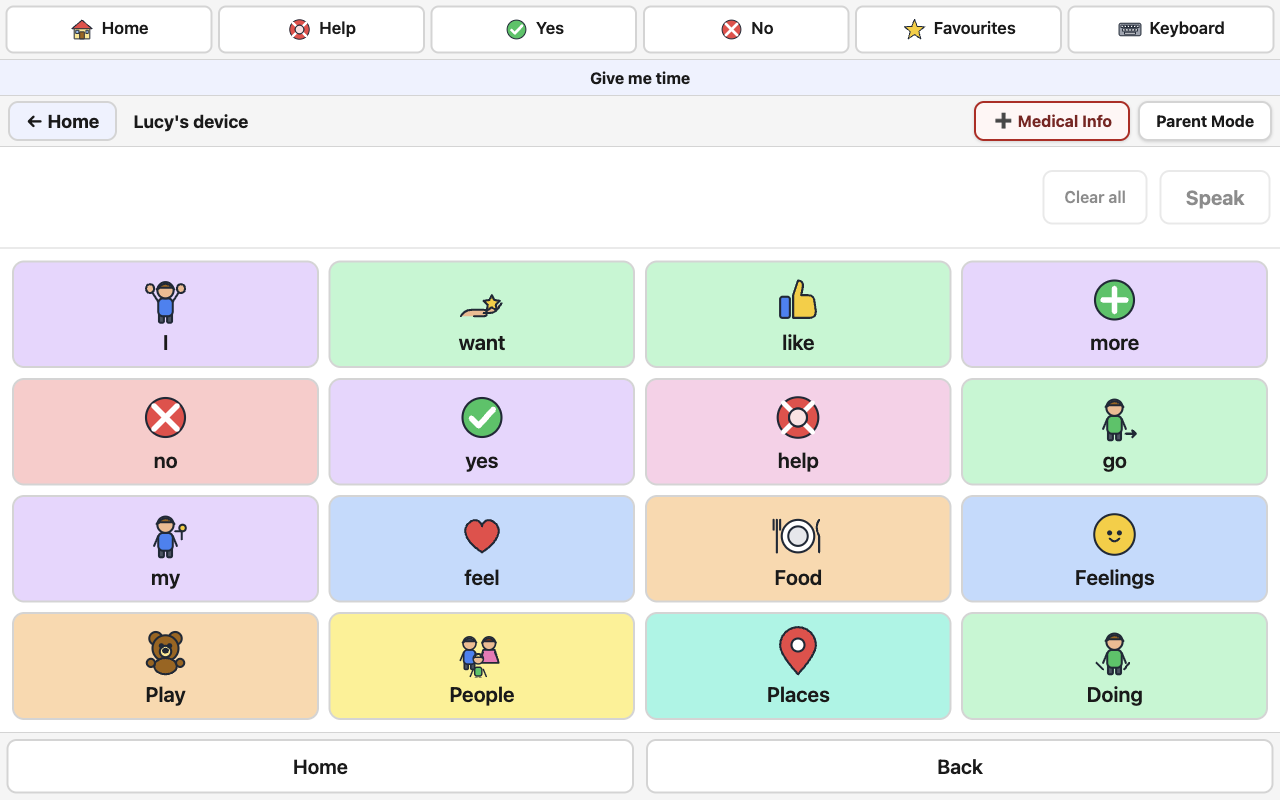
This is the real Talk page, with the app's own words and pictures. Press a word to hear it and add it to the sentence, open a folder such as Food or Feelings, then press Speak. Each word lights up as it's said, so a child can see what they hear. Try Help and Give me time too, and change how it behaves with the settings underneath.

Each kind of word has its own colour, on every page, so children start to find words by colour as well as by picture:

  • People
  • Doing words
  • Describing
  • Things
  • Places
  • Social words
  • Little words
  • No and stop

Talk

In the app, an adult chooses these in Parent Mode. Try them here.

This uses your browser's voice, and nothing you press is saved or sent anywhere. In the app, Rugged Speech uses the voices already on your Windows computer or Mac, so it talks even with the wifi off. The folders, words and pictures here are the app's own.

What you can count on

Five things that will never change.

It works without wifi

On a coach trip, in a field, in a hospital waiting room. It never needs the internet.

Your child's information stays put

Photos, medical details and what they say stay on the tablet. No accounts, no cloud.

Buttons stay where your child learnt them

Nothing reshuffles. Once "more" is learnt, it's there tomorrow, and next year.

Your child's screen stays simple

Big buttons for them. Settings live behind your PIN, out of reach.

It never talks over your child

It only speaks when someone presses. Suggestions never speak on their own.

For parents and carers

From the box to your child's first words in 20 minutes.

You don't need to be good with computers. Every choice can be changed later, and there's a Back button on every step.

  1. Install it 2 minutes

    On Windows, double-click the file. If it says Windows protected your PC, press More info, then Run anyway. On a Mac, open the disk image and drag the app to Applications, then allow it once in System Settings, Privacy & Security. You won't need an administrator password on Windows.

  2. Answer a few questions 8 minutes

    Your child's name, a voice they like, how big the buttons are, and pictures or emoji. Then choose a four-number Parent PIN.

  3. Write down your recovery code

    It's four words, shown once. It's the only way back in if you forget your PIN, so keep it somewhere safe.

  4. Make it theirs 10 minutes

    Add Mum, Grandad, nursery and the park with real photos, and record your voice saying their names. For many children, this is the part they love most.

  5. Keep it safe

    Fill in Medical Info and the Lost mode details, then save a backup to a USB stick. The app reminds you once a month.

Read the guide for parents

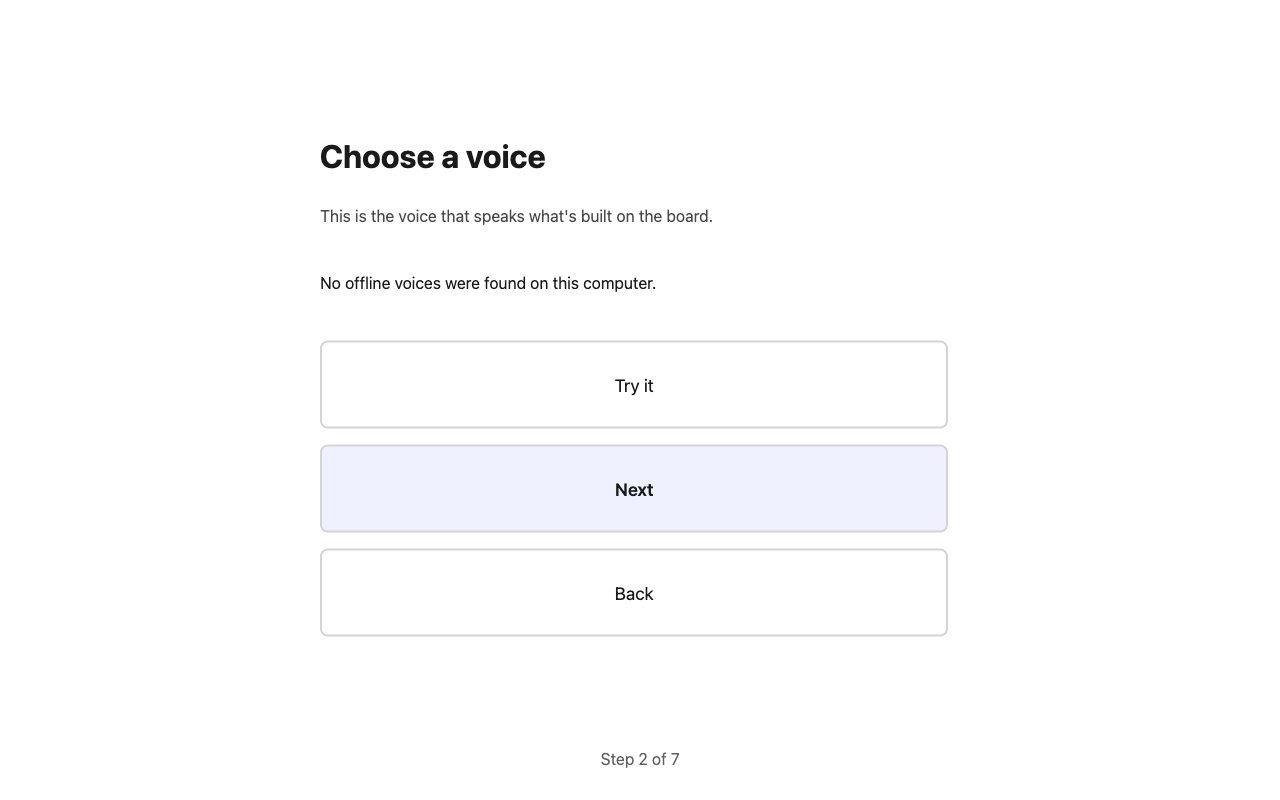
The set-up step for choosing a voice, with a Try it button beside each voice
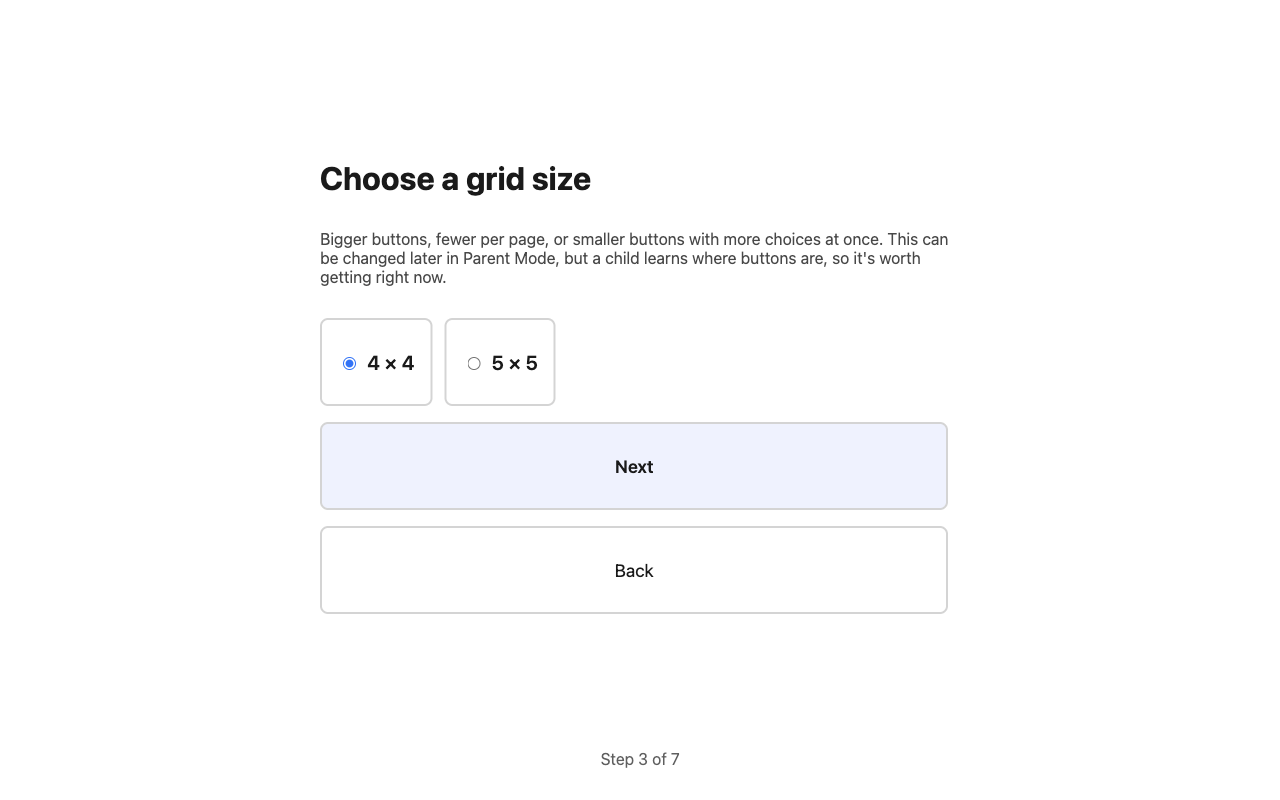
Choosing how big the buttons are during set-up
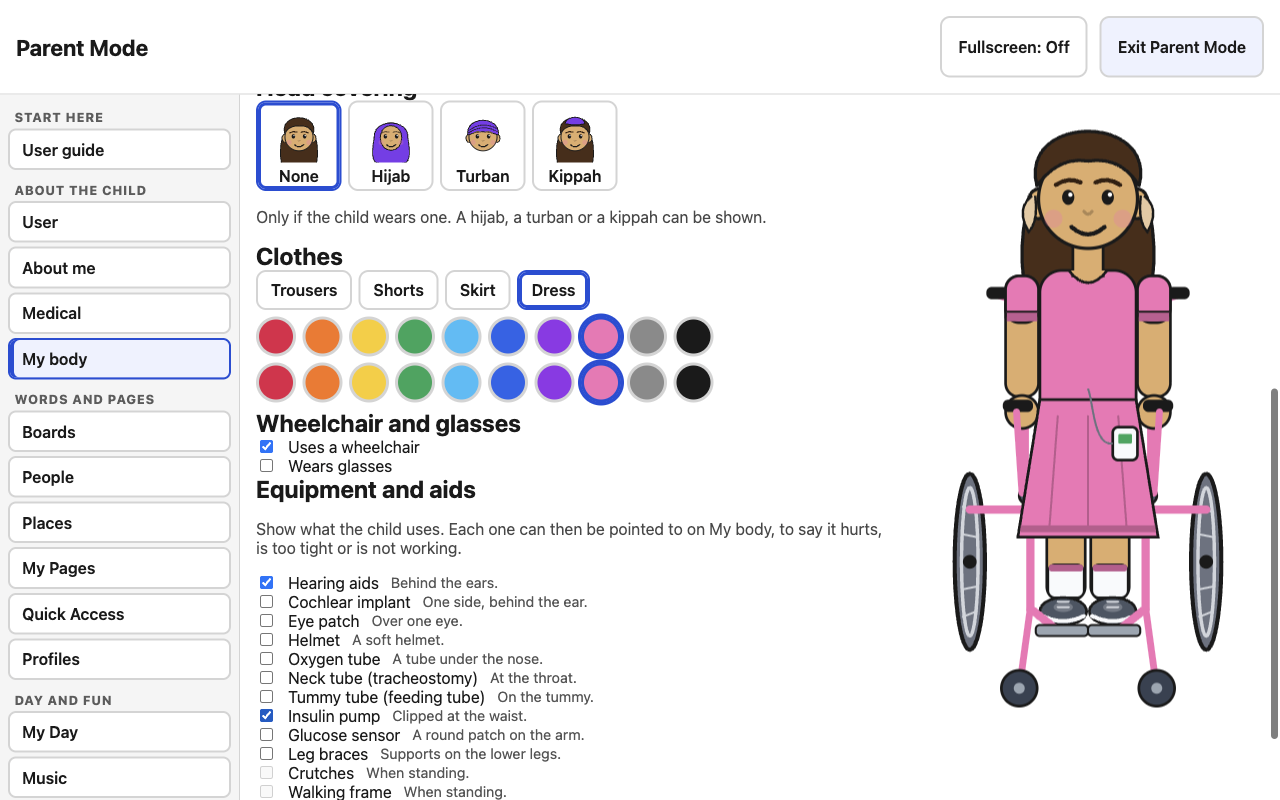
Making the My body figure look like your child
The best thing you can do: use it yourself.Press the buttons as you talk: "Do you want a drink?" Your child sees how it works without being asked to do anything. Therapists call this modelling.

For SENCos, teachers and teaching assistants

The child's own voice, in your classroom.

The device comes into school with the child, already set up the way the family and therapist agreed. School Mode gives staff their own side of it, with its own School PIN. Parents keep the Parent PIN, and you never need it.

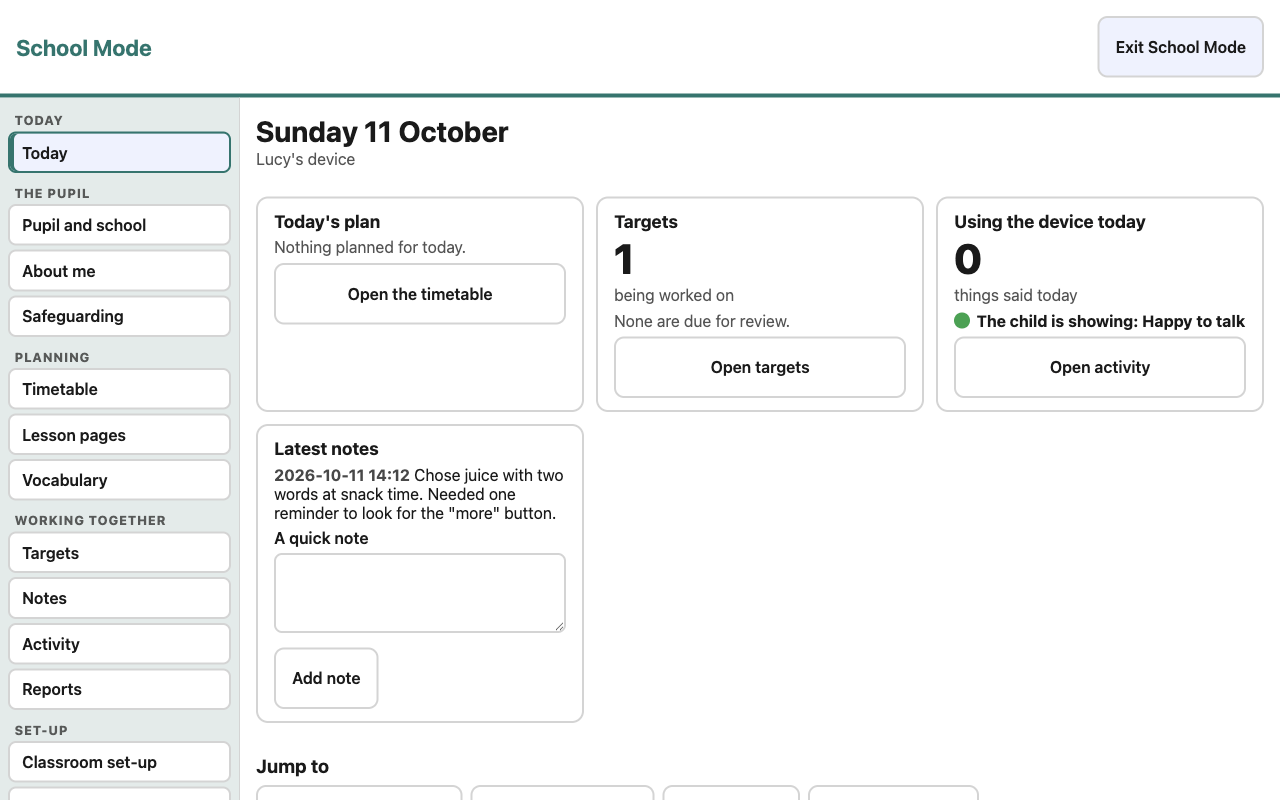
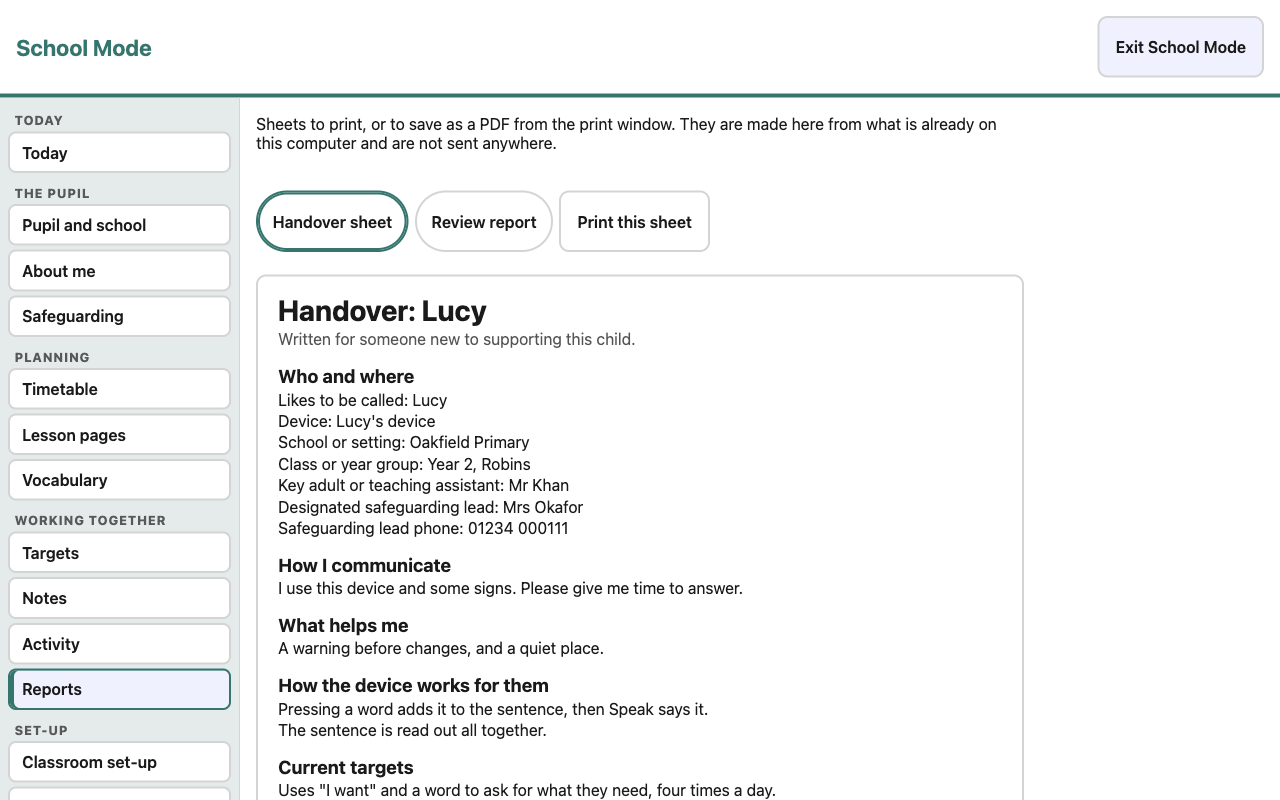
The Today page in School Mode: the timetable, targets due, the traffic light and the latest notes
  • TodayThe timetable, targets due, the traffic light and the latest notes on one page.
  • Pupil and schoolClass teacher, key adult, SENCo and therapist. Never shown to the child.
  • SafeguardingYour designated safeguarding lead (DSL), and what the device does and doesn't do.
  • Classroom set-upA school top bar and a typical school day, if you want them. Each one asks first, because it moves buttons.
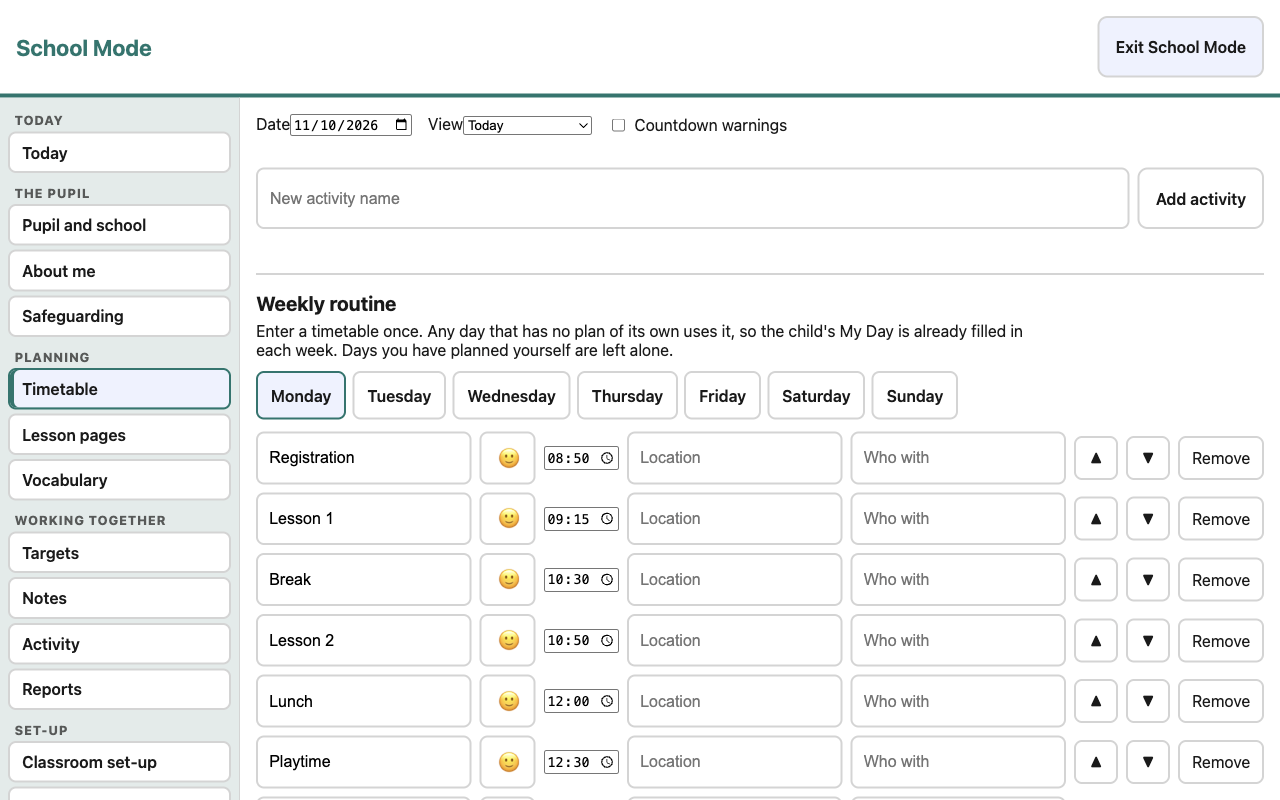
  • TimetableEnter it once and it repeats each week. Countdowns stay off unless you choose.
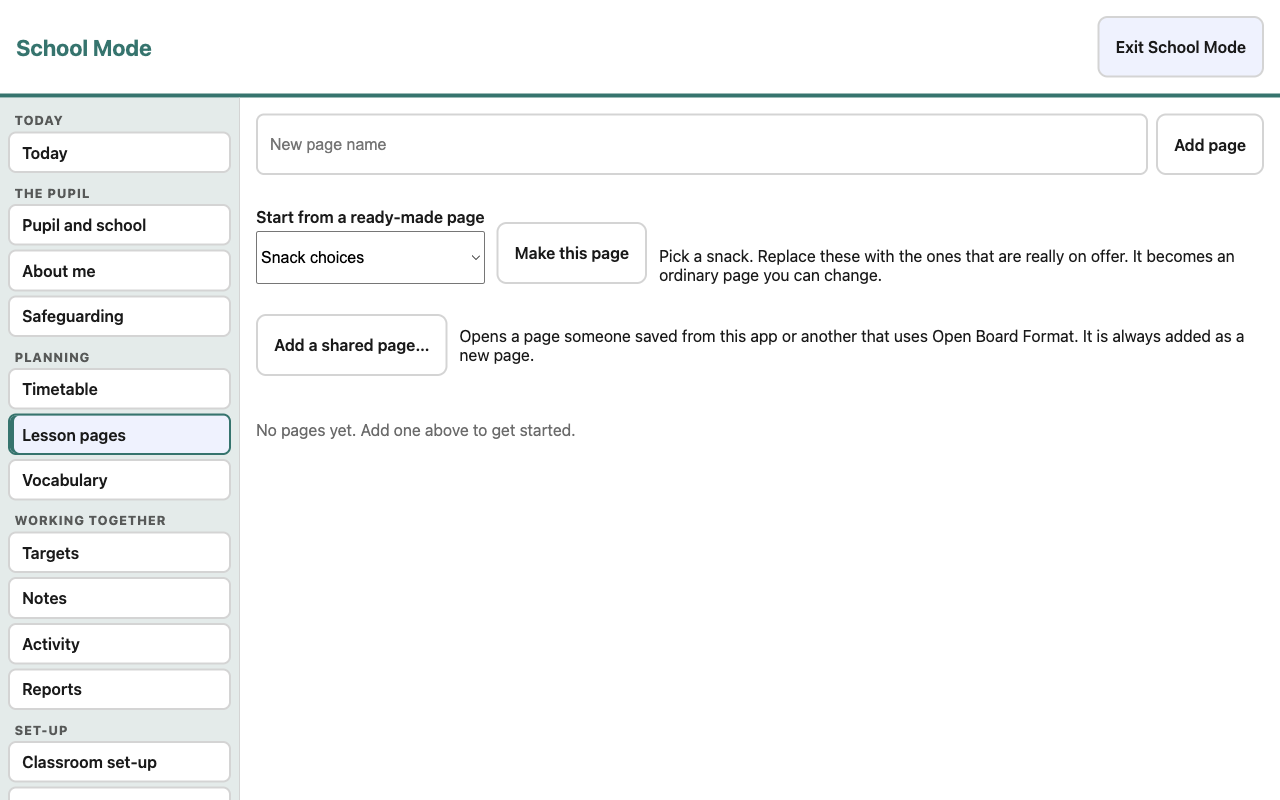
  • Lesson pagesReady-made pages for maths, story time, PE, lunchtime, assembly and more.
  • VocabularyWord stages and focus words, agreed with the child's therapist.
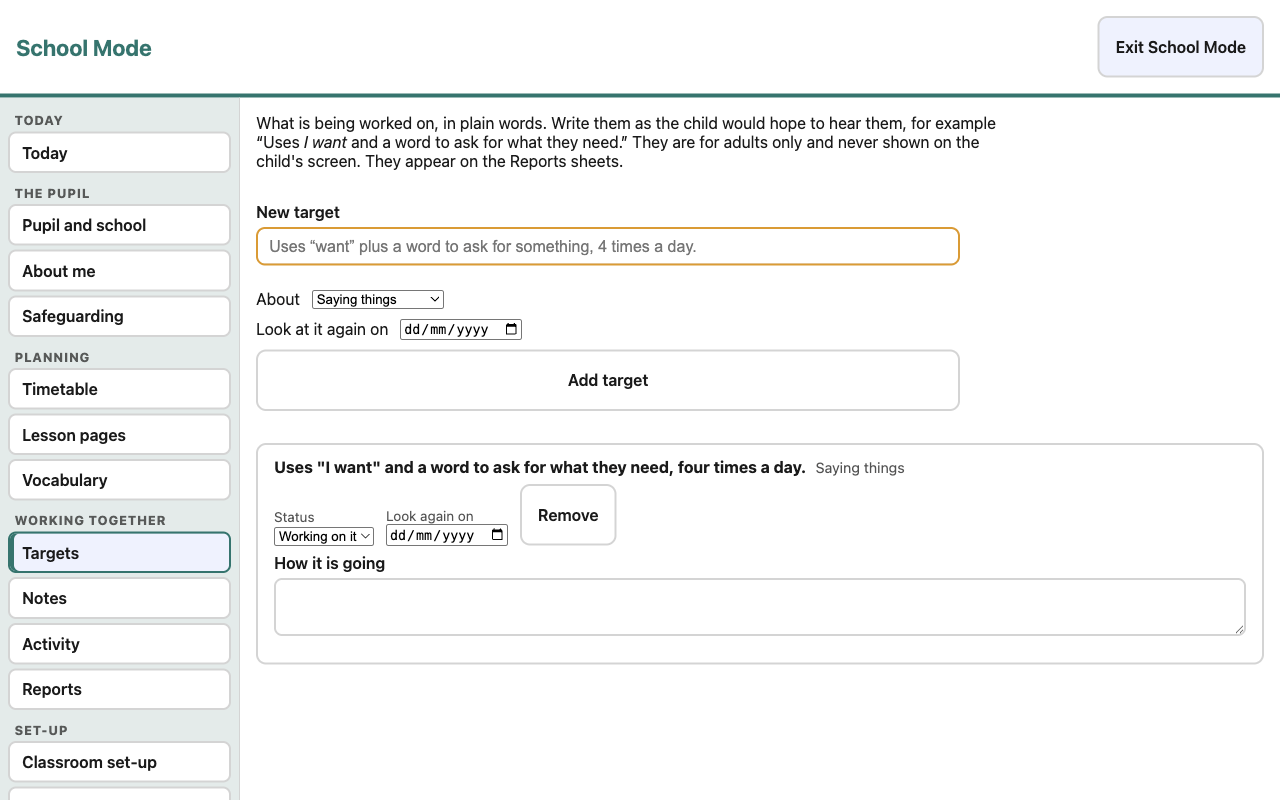
  • TargetsWritten in plain words, with a review date and a status.
  • NotesA few kind, factual lines after a session, shared with home.
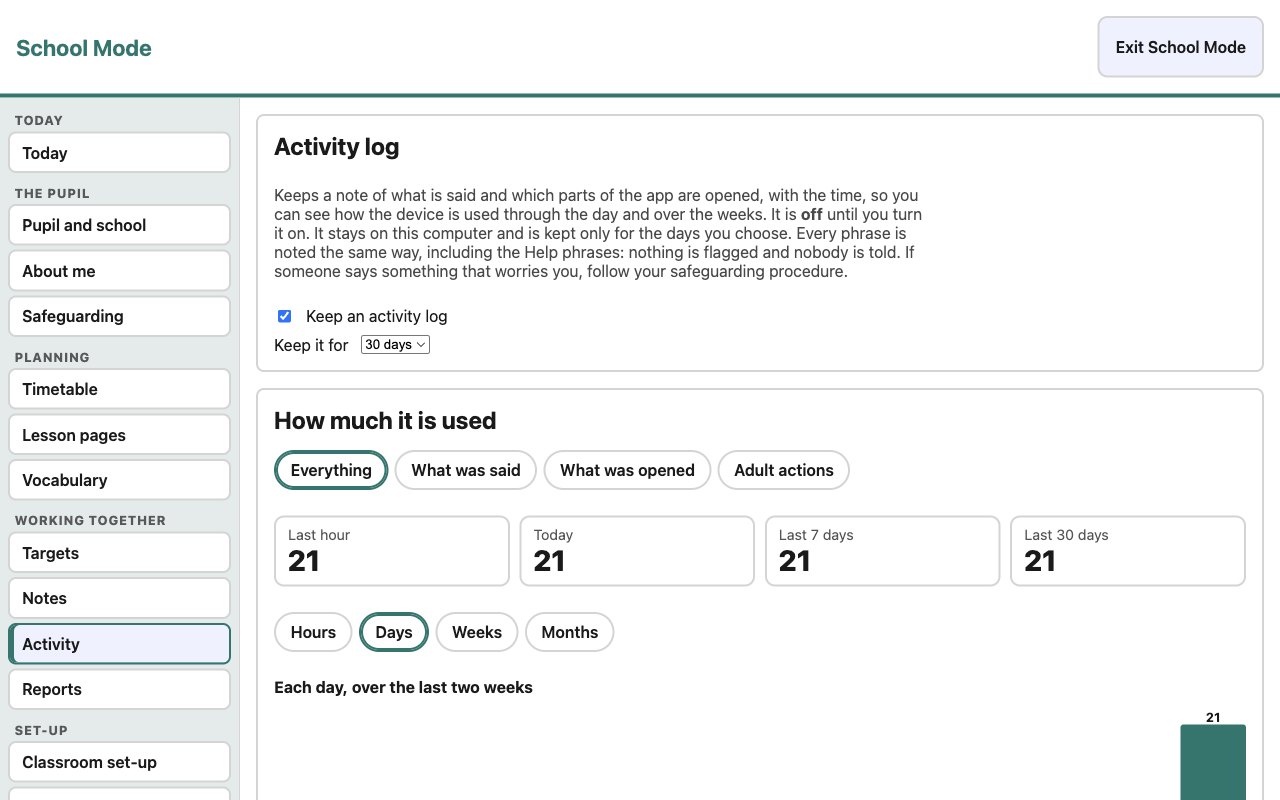
  • ActivityAn optional record of use. Off until you turn it on.
  • ReportsA one-page handover sheet for supply staff, and a report for review meetings.
The School Mode button next to Parent Mode
School Mode button
School Mode timetable
Timetable
Ready-made lesson pages
Lesson pages
Targets with review dates
Targets
Optional activity record with bars by hour, day, week and month
Activity
The printable handover sheet
Handover sheet
Easy on your IT teamInstalls for one user with no administrator password. Nothing to unblock on the network, because it never connects to it.
Easier data protectionNo pupil accounts and nothing stored in the cloud. You'll still want a data protection impact assessment (DPIA), and the security notes are written to help with it.
No cost to the budgetThe app is free. You can run it on rugged tablets you already have, or any Windows 10 or 11 device or Mac.
The device is not a safeguarding record. The Help section has phrases such as "Someone hurt me" because a child needs those words. The app says the phrase and stops. It doesn't flag it or tell anyone, so if a child says something that worries you, follow your setting's usual procedure.

For speech and language therapists

Designed around good AAC practice. The clinical choices are left to you.

Rugged Speech doesn't try to decide what a child should say. It gives you a stable, flexible system, and leaves the vocabulary, staging and settings to you and the family.

Motor planning

Buttons never move

Grids never rearrange themselves. Hiding a word leaves an empty space, and making a page bigger only adds empty spaces. The grid size only changes when an adult changes it.

Core and fringe

A small core, personal folders

A stable first set, with folders of nine or fewer. Families add the fringe with photos and recorded voices.

Iwantlikemorenoyeshelpgostoplookagainthat
Aided language input

Made for modelling

Pressing a word speaks it, so partners can model as they talk. Sentences can be read one word at a time, with each word lit.

Colour coding

A Modified Fitzgerald Key

Colour follows word class on every page. You can adjust it, and the app warns you if two classes look too alike.

Staged vocabulary

Word stages and focus words

Bring words in gradually without moving anything, and outline the words being practised. No word comes with a stage set.

Expectant delay

Time to answer

Give me time is always one press away. Prediction only suggests, and nothing speaks unless the child presses.

Access

More than one way to press

One- and two-switch scanning, hold-to-select, ignoring accidental double presses, keyboard access, high contrast and text size.

Speech output

A voice that fits

Choose the voice, speed and pitch. "Say it like this" teaches it to pronounce names, and recorded clips can replace the synthetic voice.

Evidence

Data you can use, if you want it

Optional word counts and an activity record, both off by default, export to a spreadsheet. Pages share as Open Board Format files.

The starter words need a therapist's eye.

The starter vocabulary is a sensible beginning, but no speech and language therapist has reviewed it yet. It hasn't been tested with children either. The clinical review lists the decisions we think belong to a clinician. If you'd be willing to look at it, please email us at aac@communitystack.io.

Choosing a device

The tablet we use: the Dell Latitude 7212 Rugged Extreme.

All the photos of Rugged Speech on this page were taken on a Dell Latitude 7212. It's a tough 11.6-inch Windows tablet, built for building sites and field work, so it copes well with busy family and school life.

  • Built to be droppedRubber corners, tested to the US military MIL-STD-810G standard
  • Dust and waterIP65 rated, so rain, juice and the sandpit are fine
  • 11.6-inch touchscreenFull HD, readable outdoors, and works with gloves on
  • Two batteriesEnough for a long day out, with a spare that swaps in
  • P1, P2 and P3 buttonsProgrammable buttons along the bottom edge
  • Windows 10 Pro or 11 ProRugged Speech installs just like any other program. It runs on a Mac too.
A Dell Latitude 7212 rugged tablet propped up in a flower bed, running the Piano game, with its P1, P2 and P3 buttons visible below the screen

Recommended models

What we use

Dell Latitude 7212 Rugged Extreme

The tablet Rugged Speech is built and tested on.

Also suitable

Other rugged Windows tablets

Such as Panasonic Toughbook and Getac tablets that meet the requirements.

Also suitable

Any Windows tablet or laptop

With a touchscreen, in a sturdy, child-proof case with a handle or strap.

Also suitable

A Mac

Apple silicon or Intel. A MacBook in a sturdy case works well at home or in school.

System requirements

  • Operating systemWindows 10 or 11, 64-bit (not in S mode), or a recent version of macOS
  • ProcessorIntel or AMD (x64), or an Apple silicon or Intel Mac
  • Memory4 GB or more
  • Storage500 MB free, plus room for photos and music
  • ScreenTouchscreen, 10 inches or larger. A mouse also works.
  • SoundSpeakers loud enough for a classroom
  • VoicesEnglish voices installed for offline use (Windows: Settings → Time and language → Speech. Mac: System Settings → Accessibility → Spoken Content)
  • InternetNot needed

Questions people ask

Quick answers.

Is Rugged Speech really free?

Yes. There is no subscription, no account and no in-app purchase. It is free and open source, and always will be for families and schools.

Does it need wifi or the internet?

No. It never uses the internet, so it works on a coach, in a field or in a hospital waiting room. New versions arrive as a new installer that you choose to run.

Where is my child's information kept?

On your device only. Photos, medical details and what your child says never leave it. The only way anything leaves is a file an adult chooses to save, such as a backup.

Why does my Mac say Apple could not verify it?

Rugged Speech is not yet signed with an Apple Developer ID, so the Mac cannot check it against Apple's list and shows that message the first time. It does not mean anything is wrong. Open System Settings, then Privacy & Security, scroll down to the message about Rugged Speech and press Open Anyway, then enter your Mac password. You only need to do this once. On Windows, press More info and then Run anyway.

What does it run on?

Windows 10 and 11 (64-bit), and Mac (Apple silicon and Intel). iPad and iPhone, Android and Amazon Fire tablets are coming soon.

Who is it for?

Children and young people whose speech is difficult, unreliable or tiring, including autistic children, children with speech, language and communication needs, and children who stammer. It supports talking and does not replace it.

Can a school set it up for a whole class?

No. It is one device for one child, with no pupil accounts. School Mode gives staff their own side of the app with its own PIN, and a good set-up can be saved as a backup.

Does the PIN lock the device?

No. The Parent PIN keeps the settings safe. A child can still switch to other programs, so use your Windows or Mac sign-in to protect the device itself.

Is it a medical device?

No. Rugged Speech is a communication aid, not a medical device. The starter words are a sensible beginning, and choosing words for a child is a decision to make with a speech and language therapist.

Guides

Help in plain English, whenever you need it.

The short guides are below. The full guide is also built into the app, in Parent Mode under User guide, so you can look things up without the internet.

Getting started: parents and carers

Rugged Speech has big buttons with pictures and words. When your child presses them, the tablet says the words out loud. It works just the same with the wifi off.

What you need

  • A Windows 10 or 11 tablet or computer, or a Mac. A touchscreen is best, but a mouse works.
  • The installer: Rugged Speech Setup 0.0.1.exe on Windows, or the disk image for your Mac (Apple silicon or Intel).
  • About 10 minutes, and a quiet moment to choose a voice with your child.

The first set-up

  1. Whose device is this? A name makes it "Lucy's device", shown along the top, so anyone who finds it knows whose it is.
  2. Choose a voice. Press Try it and pick the one your child likes best.
  3. Choose how big the buttons are. Fewer, bigger buttons are easier. Once it's set, try not to change it.
  4. Pictures and words. Drawn pictures or emoji; pictures and words, pictures only, or words only.
  5. What pressing does. For a child just starting, Say the word straight away is usually best.
  6. Colours, then a Parent PIN. Write down the four-word recovery code.
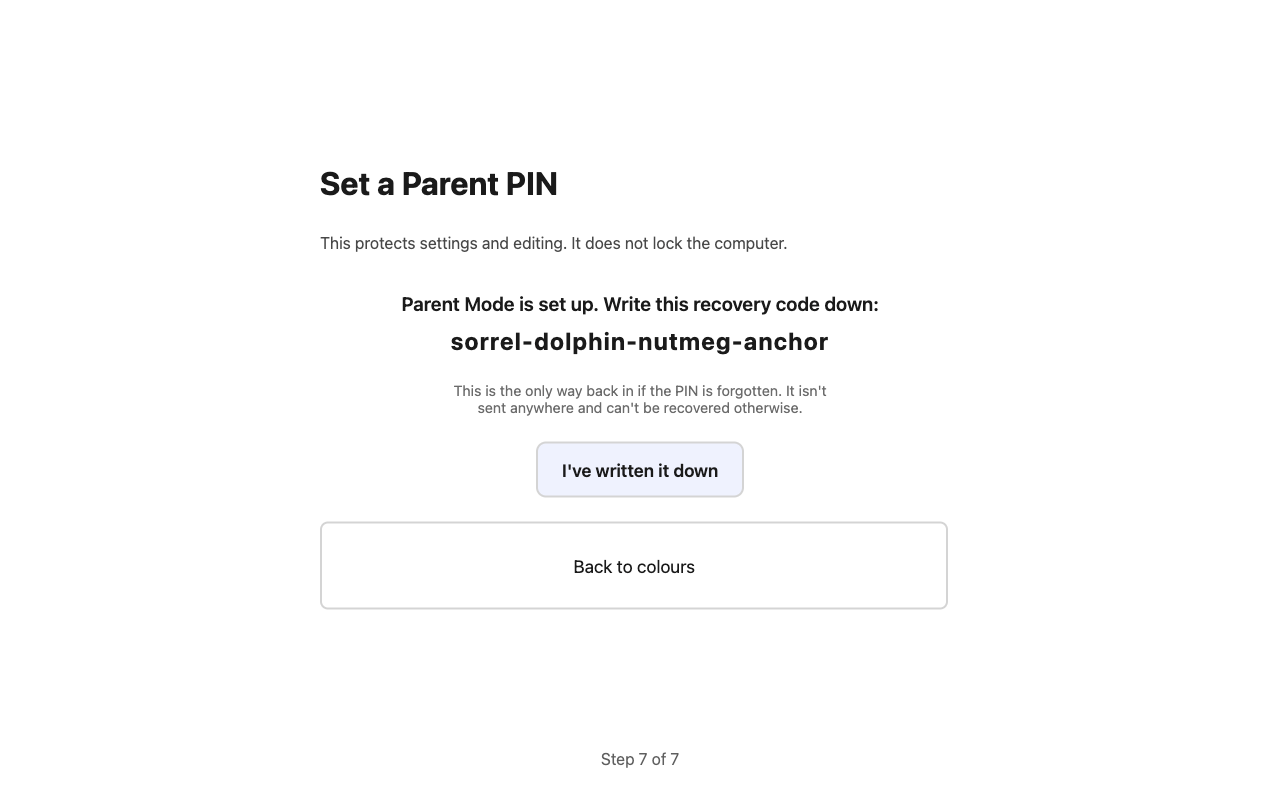
Setting the Parent PIN, then the four-word recovery code

10 minutes in Parent Mode

  1. People and Places: add the people and places your child talks about, with a photo and your voice.
  2. My body: make the figure look like your child, including hair, a head covering such as a hijab, turban or kippah, a wheelchair or other equipment.
  3. About me and Medical: anyone can read these with one press, so only write what you're happy to share.
  4. Quick Access: choose the six top buttons, such as Break, Toilet, Games or Traffic light.
  5. Look and Seasons: pick a favourite colour, and choose which celebrations your child sees in Games.
  6. School: only if a school will use it. Turn on School Mode and give staff a School PIN.
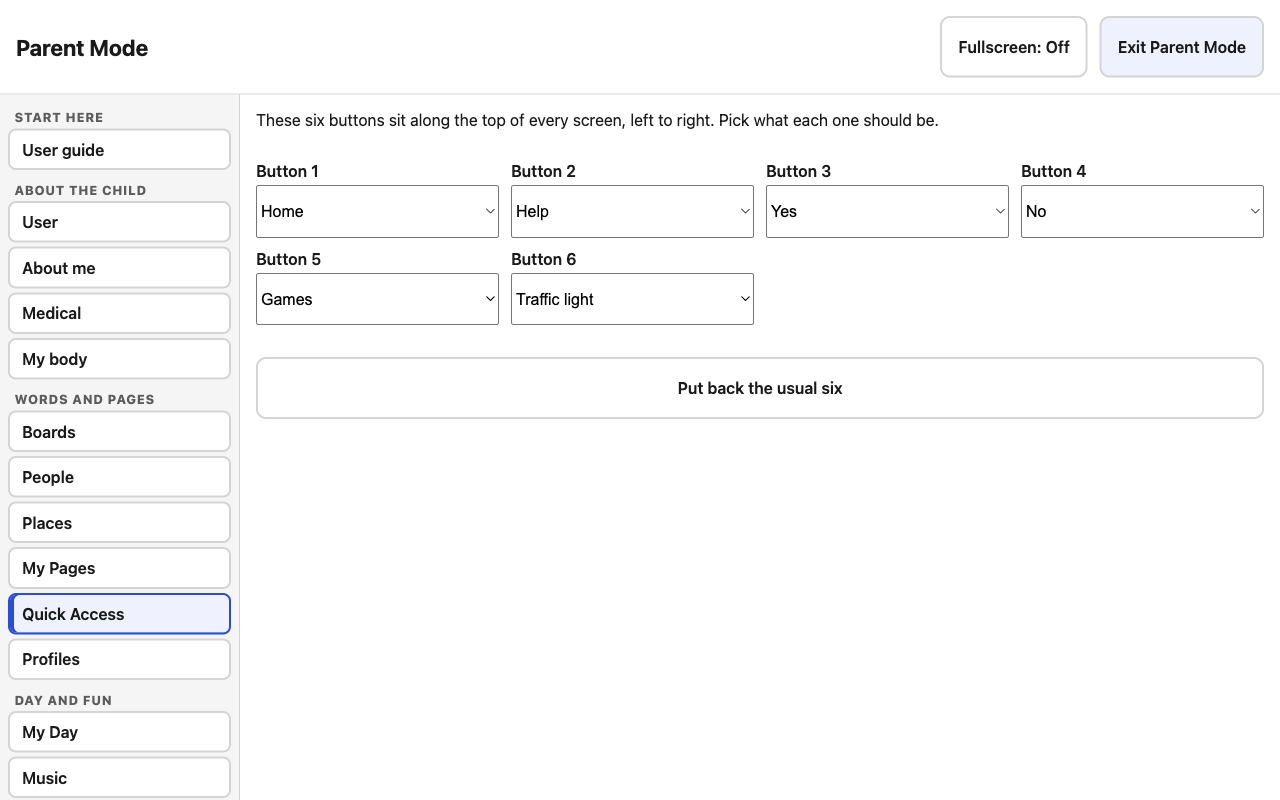
Choosing the Quick Access buttons along the top

A few good habits

  • Wait. After you ask something, give plenty of time before asking again.
  • Keep buttons where they are. Knowing where a button is, is how a child gets quick.
  • Start small. A few words your child really wants (more, drink, help, stop) beat a page full.
  • Ask your speech and language therapist to look at the words and settings with you.
The full guide for parents

Behind the project

Made in Barnsley, as part of Community Stack.

Rugged Speech is a Community Stack project. Community Stack builds shared tools for communities across the North of England and beyond, with a simple approach: build it, prove it, share it. That's why Rugged Speech is free and open for anyone to use.

  • ReadyThe Windows and Mac apps work and have been carefully tested. Every new feature goes to both at once.
  • NextA speech and language therapist review of the starter words, and trying it with children.
  • Coming sooniPad and iPhone (iOS), Android, and Amazon Fire tablets (Fire OS), with the same promises: no wifi needed, and nothing about your child leaving the device. More about what's coming.
Part of Community Stack
Ethan Sumner, smiling outdoors in a Community Stack polo shirt
Ethan SumnerFounder and CEO, Community Stack
Melissa Dunmore, smiling indoors
Melissa DunmoreData Engineer, Community Stack

Coming soon

iPad, iPhone, Android and Fire tablets.

Rugged Speech is on Windows and Mac now. We want it on the tablets and phones families already have, so we're bringing it to Apple's iPad and iPhone, to Android, and to Amazon's Fire tablets. There are no dates yet, and we won't promise one until we have it right.

Coming soon

iPad and iPhone

Apple's iOS and iPadOS. A good fit for children who already use an iPad at home or at school.

Coming soon

Android

Phones and tablets that run Android, including many rugged tablets.

Coming soon

Amazon Fire tablets

Fire tablets, which run Amazon's Fire OS. They cost little and are widely used in homes and schools.

The promises will be the same everywhere. It will work without wifi. Nothing about your child will leave the device. Buttons will stay where your child learnt them. There will be no accounts and no subscription.

We'll only use your email to answer you. Until then, Windows and Mac are ready to download.

Free for every family and school

Get Rugged Speech.

No subscription, no account, nothing to pay. If you can double-click, you can install it.

Windows 10 or 11, or a MacTouchscreen or mouseNo wifi neededNo administrator password

On Windows

  1. Copy Rugged Speech Setup onto the tablet.
  2. Double-click it. If Windows warns you, press More info, then Run anyway.
  3. Follow the steps. It opens by itself when it's finished.
  4. Answer the short set-up, and write down your recovery code.

On a Mac

  1. Choose the download for your Mac: Apple silicon (M1 or later), or Intel. The Apple menu, then About This Mac, says which you have.
  2. Open the disk image and drag Rugged Speech onto Applications.
  3. The first time, the Mac says it can't be opened. Go to System Settings, Privacy & Security and press Open Anyway. You only need to do this once.
  4. Answer the short set-up, and write down your recovery code.